Custodia walkthrough
Register on SAM.gov, the guided version
The federal government's entity registration system isn't intuitive the first time. We took screenshots of every screen and marked exactly what to click so you finish correctly the first time. By the end you'll have a Unique Entity ID, your industry codes, your entity type on file in Custodia, and a 5-day reminder set to add your CAGE code when SAM issues it.
Before you start, have these on hand
- · EIN (employer identification number)
- · Legal business name (exactly as on your IRS letter)
- · Physical address (no PO boxes)
- · Mailing address
- · Date your business was legally formed
- · Fiscal year end date (usually 12/31)
- · State of incorporation
- · Bank routing + account number (for EFT)
- · IRS CP-575 / 147C or Articles of Incorporation (PDF)
- · A list of NAICS codes that fit your work
Plan on 45 to 90 minutes for the questionnaire. You can save and come back, SAM keeps your draft.
- 1
Open SAM.gov and click Get Started
Go to sam.gov. On the right side of the homepage you'll see a panel titled “Register Your Entity or Get a Unique Entity ID.”Click the green Get Started button.Heads up: SAM.gov registration is 100% free. If a website asks you to pay, you're on the wrong site. The only official URL issam.gov.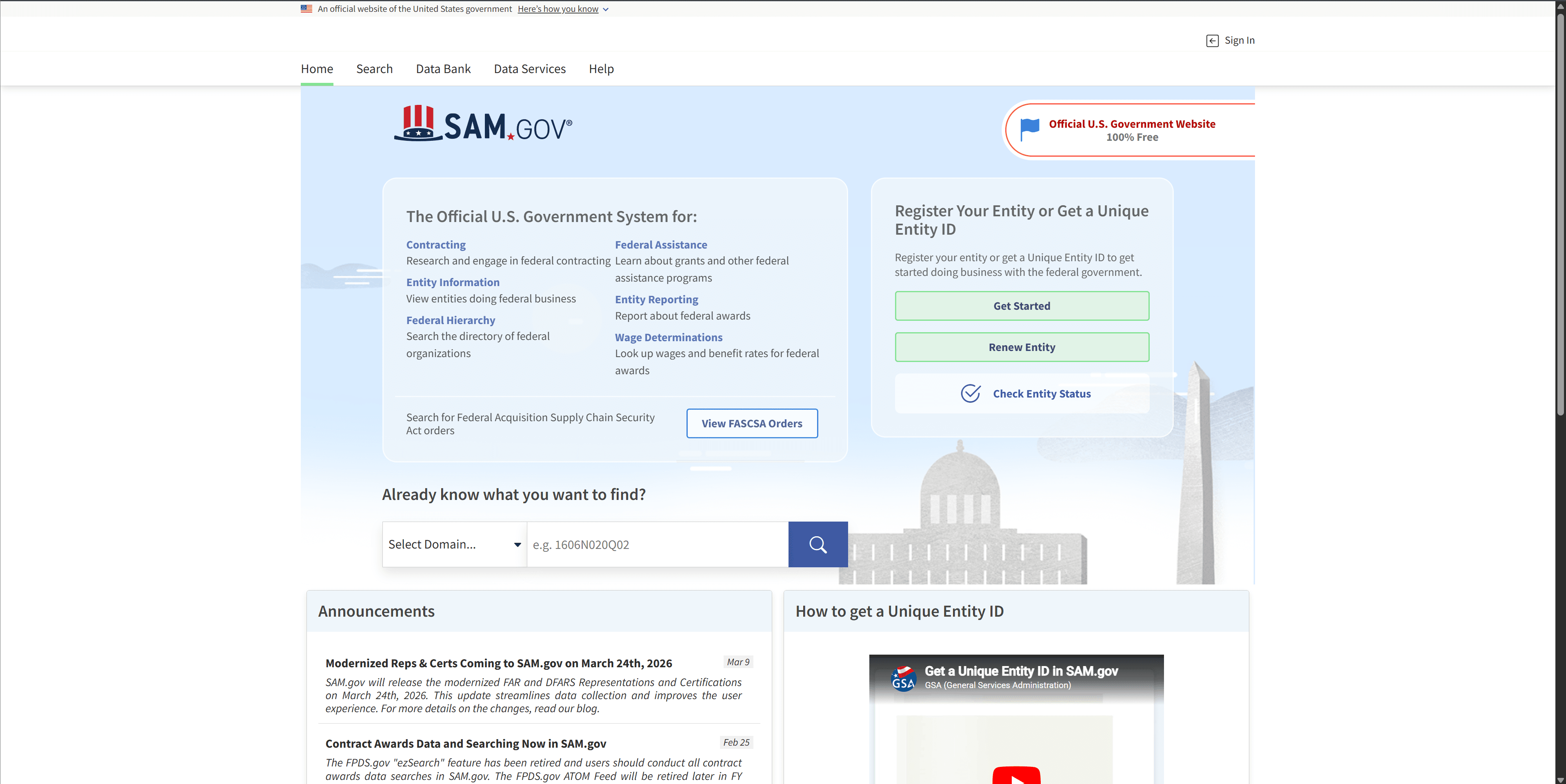
- 2
Sign in with Login.gov (or create an account)
SAM.gov uses Login.gov to handle sign-in. If you already have a Login.gov account, sign in here. If not, click Create an account and complete the email + multi-factor setup. You'll be bounced back to SAM.gov automatically.Heads up: Use a real business email you'll keep long-term. Login.gov only recognizes one email per account, and you'll need this email every year to renew your registration.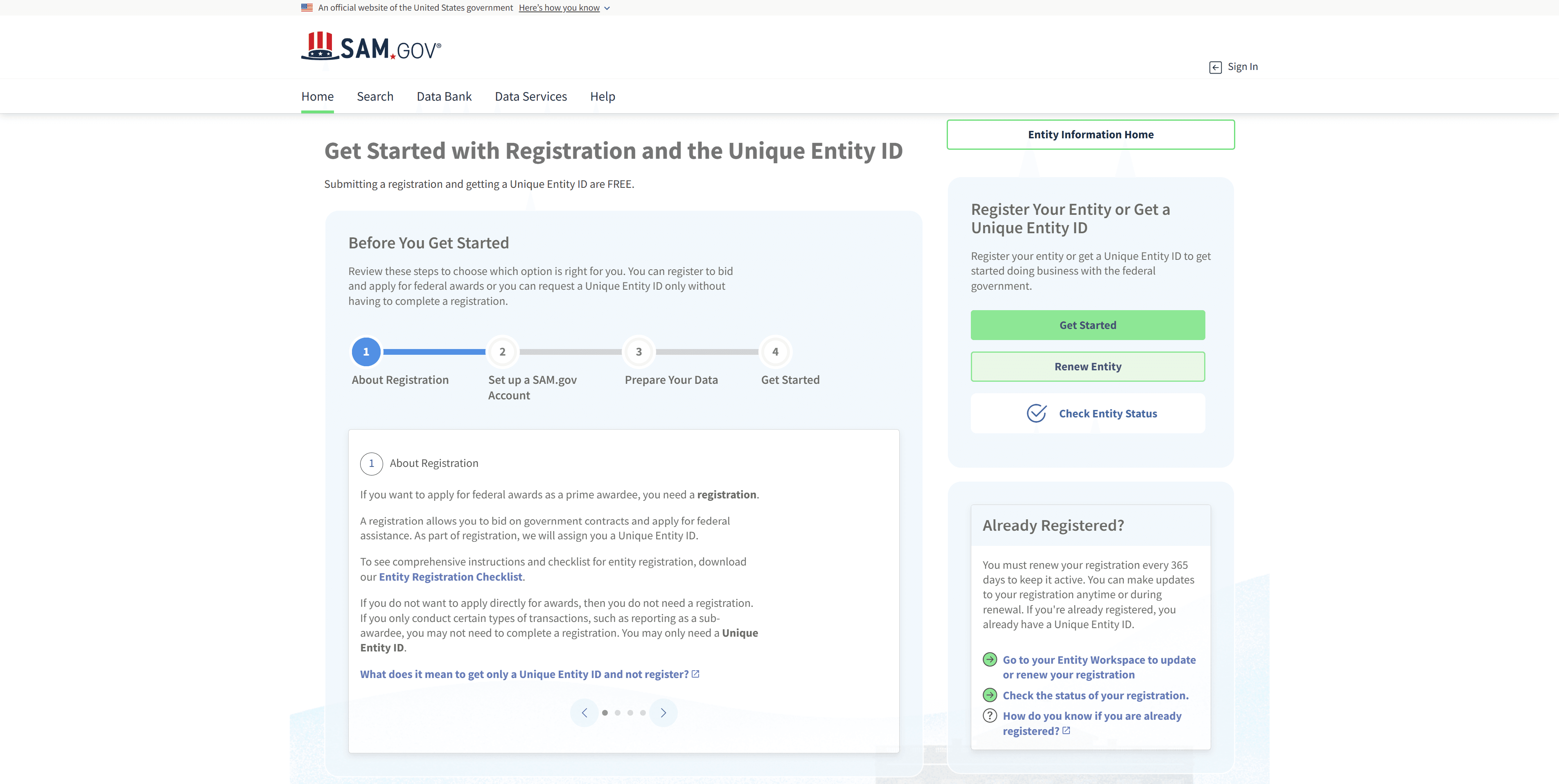
- 3
Read the “Before You Get Started” overview
SAM walks you through a 4-step pre-registration overview. You don't need to do anything here yet, just read it and click through. It explains the difference between getting only a Unique Entity ID and completing a full registration. For CMMC Level 1, you want the full registration so you can bid on DoD contracts as a prime.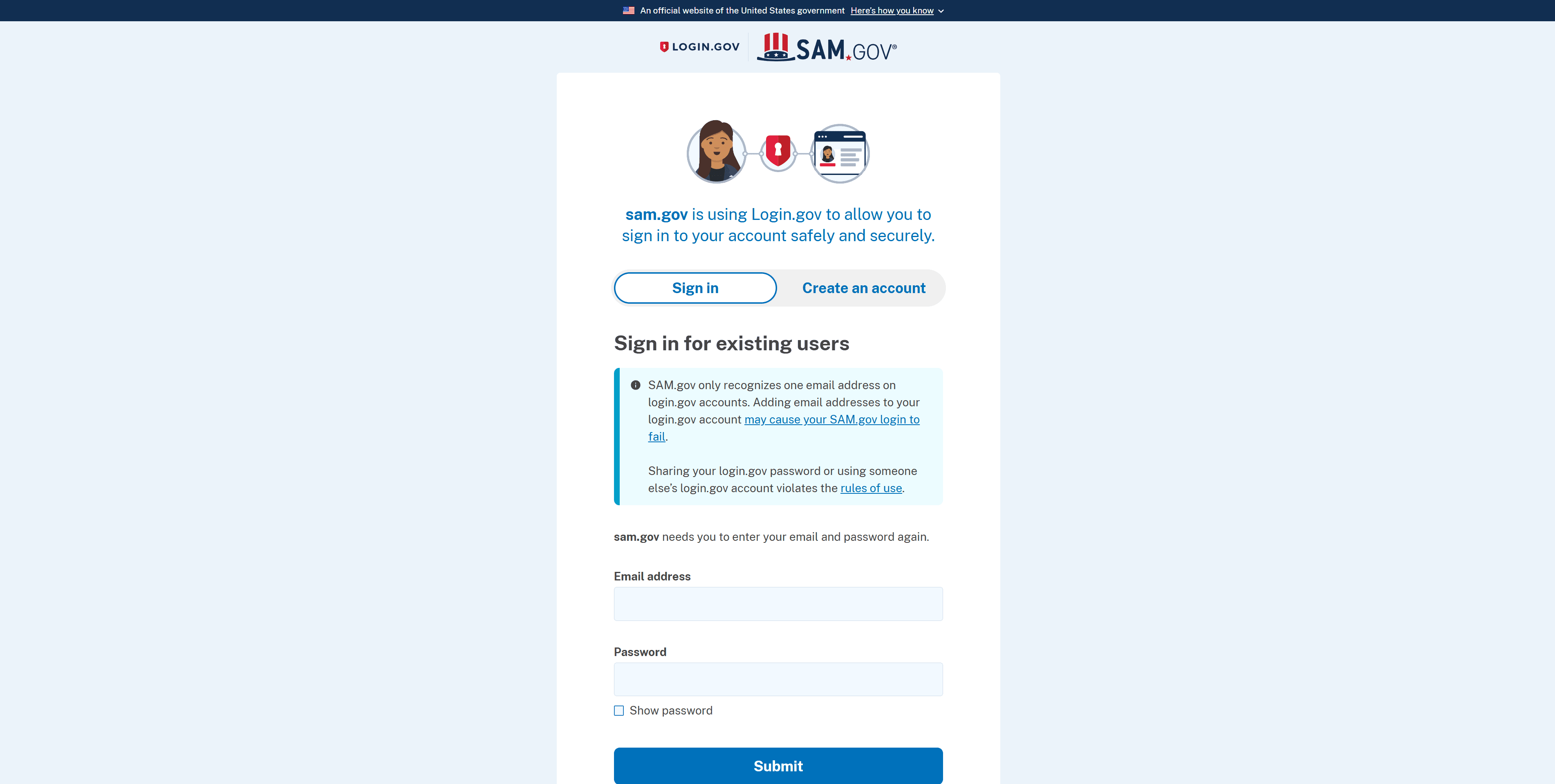
- 4
Click Create New Entity
On the Welcome screen, click the green Create New Entity button. SAM will ask a few short questions to recommend the best registration option for you.Heads up: Already have an entity from a prior year? Use Go to Workspace and pick “Renew/Update” on your existing record instead of creating a new one.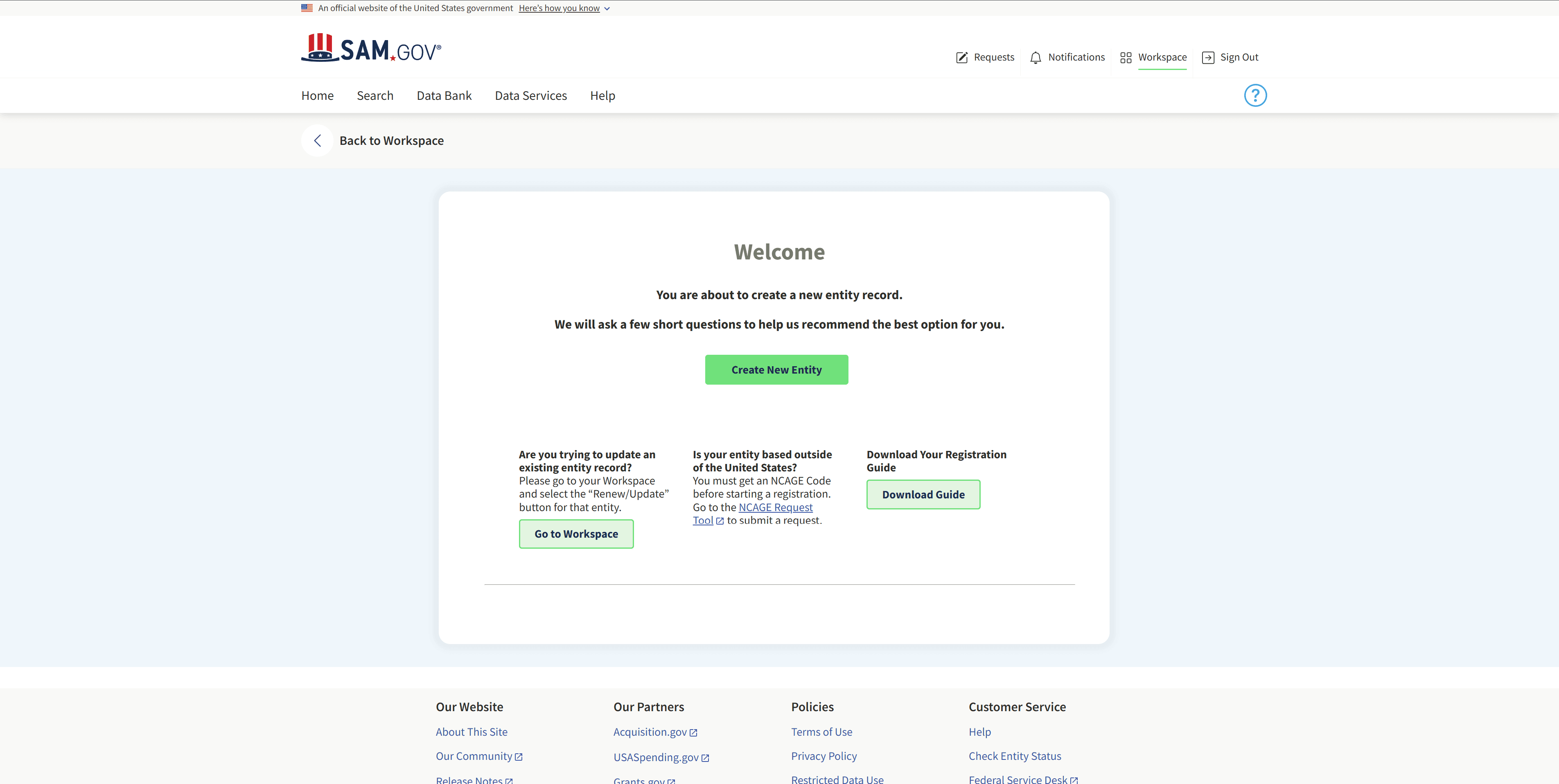
- 5
What is your goal?, pick “Directly with the U.S. federal government”
First question: I want to do business…
Select the first option: “Directly with the U.S. federal government.”Heads up: This is the right choice for any business that wants to win federal contracts as the prime awardee. Subcontractors only? Pick the second option instead, but most CMMC L1 shops want optionality to bid directly, so go with the first.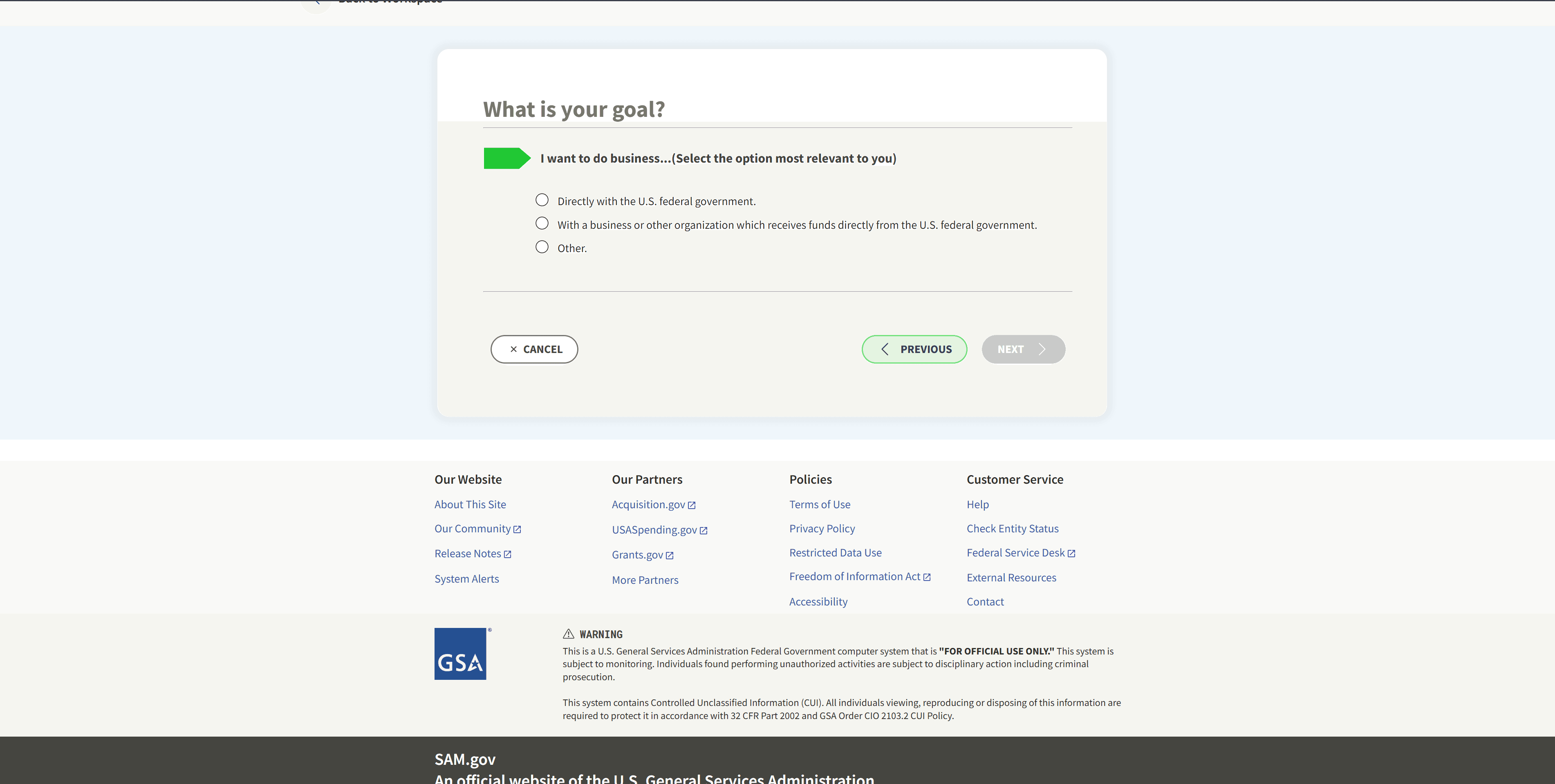
- 6
Pick “Bid on a federal procurement opportunity as a prime contractor”
After the first answer, a second list appears asking for your specific intention. Pick: “Bid on a federal procurement opportunity as a prime contractor.”Click Next.Heads up: This is what triggers the All Awards registration path, the only one that gives you everything CMMC Level 1 needs.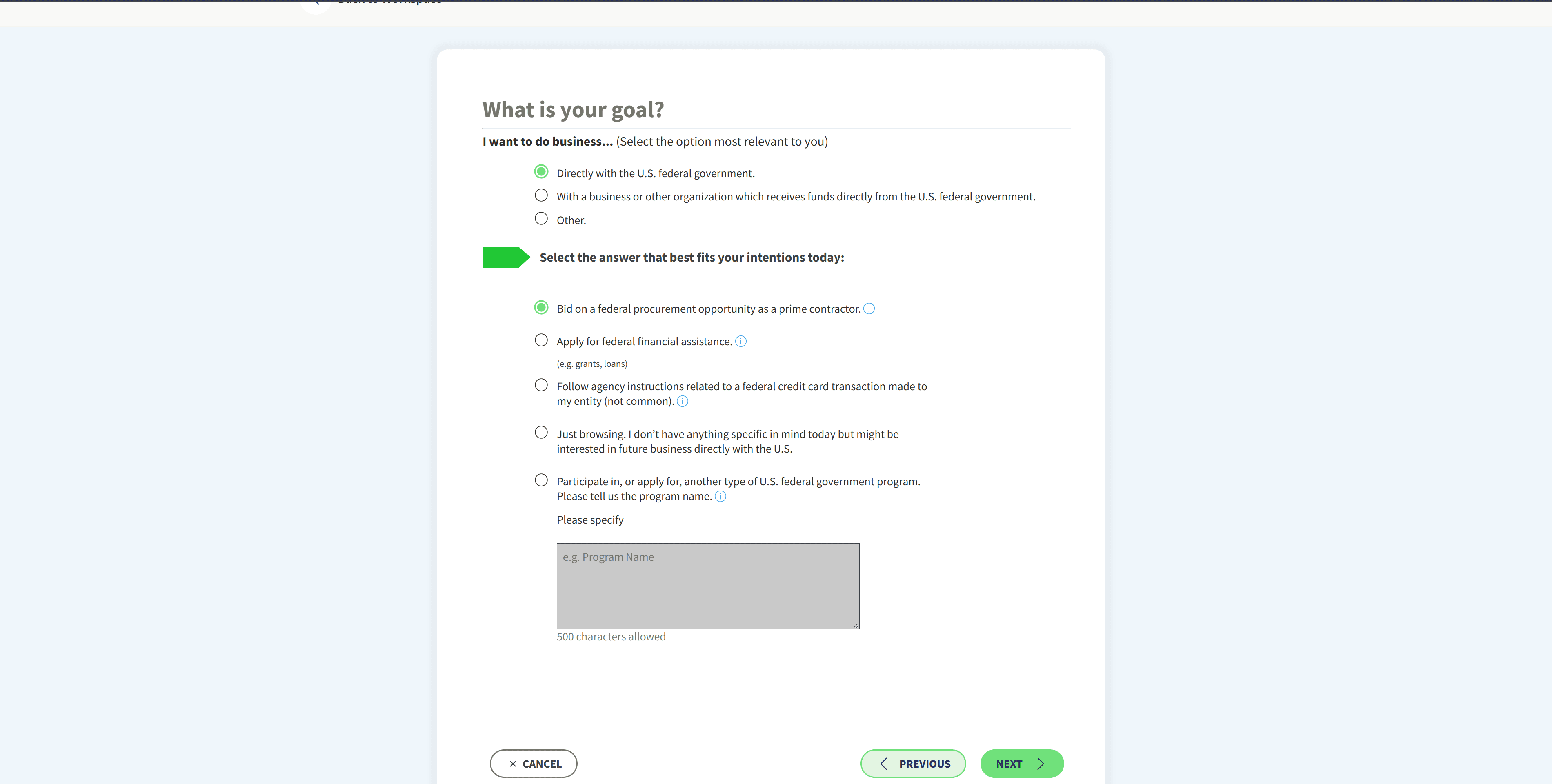
- 7
Are you a government entity?, No
Select No, then check “My entity is physically located in the United States.”Click Next.Heads up: “Yes” is only for actual government bodies (state agencies, cities, tribal nations). A private LLC is always No.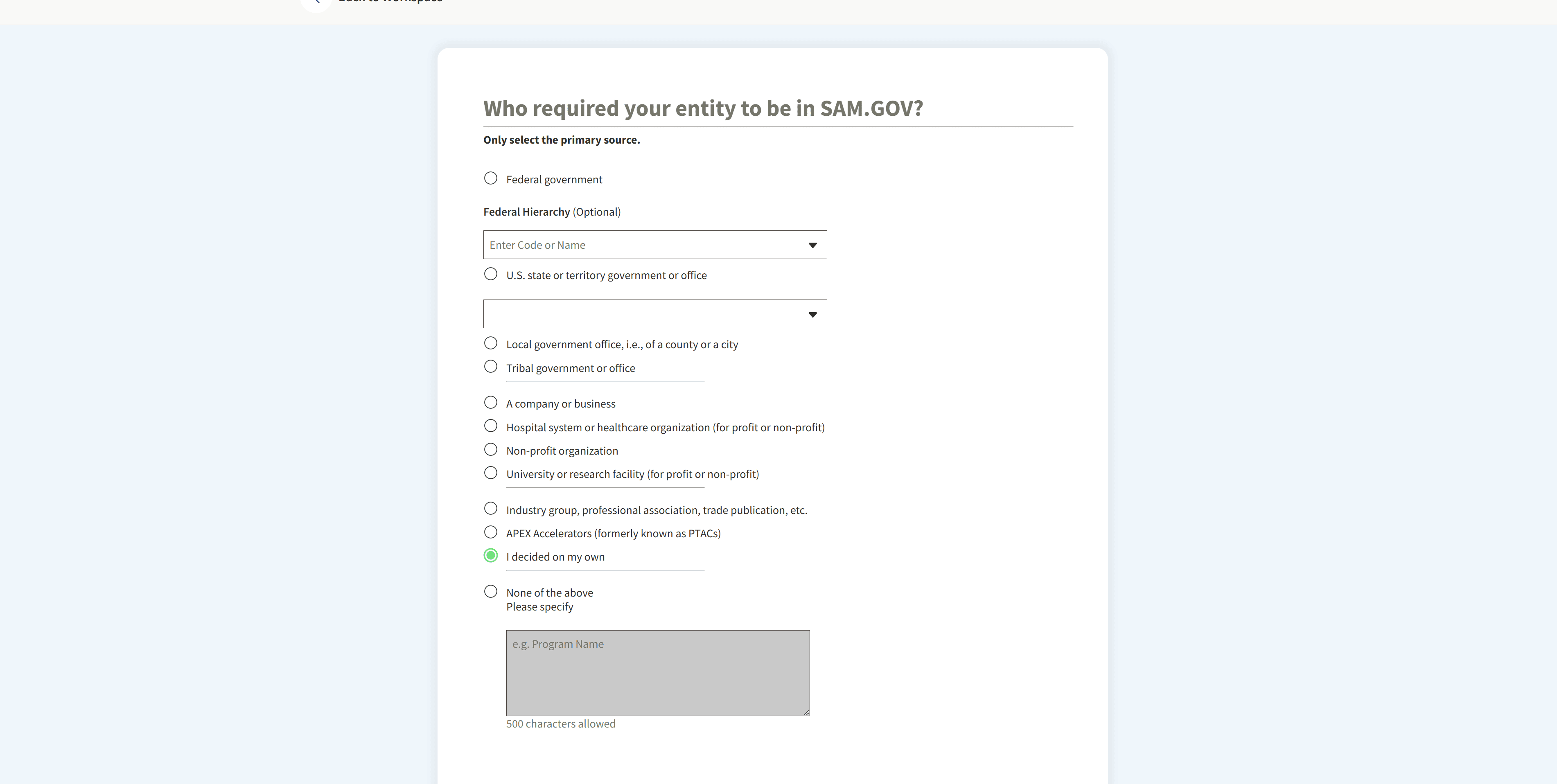
- 8
Who required you to be in SAM?, I decided on my own
Pick “I decided on my own.” This is just SAM tracking why you're registering, it doesn't affect your registration outcome at all.Heads up: Only pick Federal government if a contracting officer literally told you “you must register in SAM to receive this award” (with a solicitation or award notice). Pick APEX Accelerators only if a PTAC advisor walked you through this.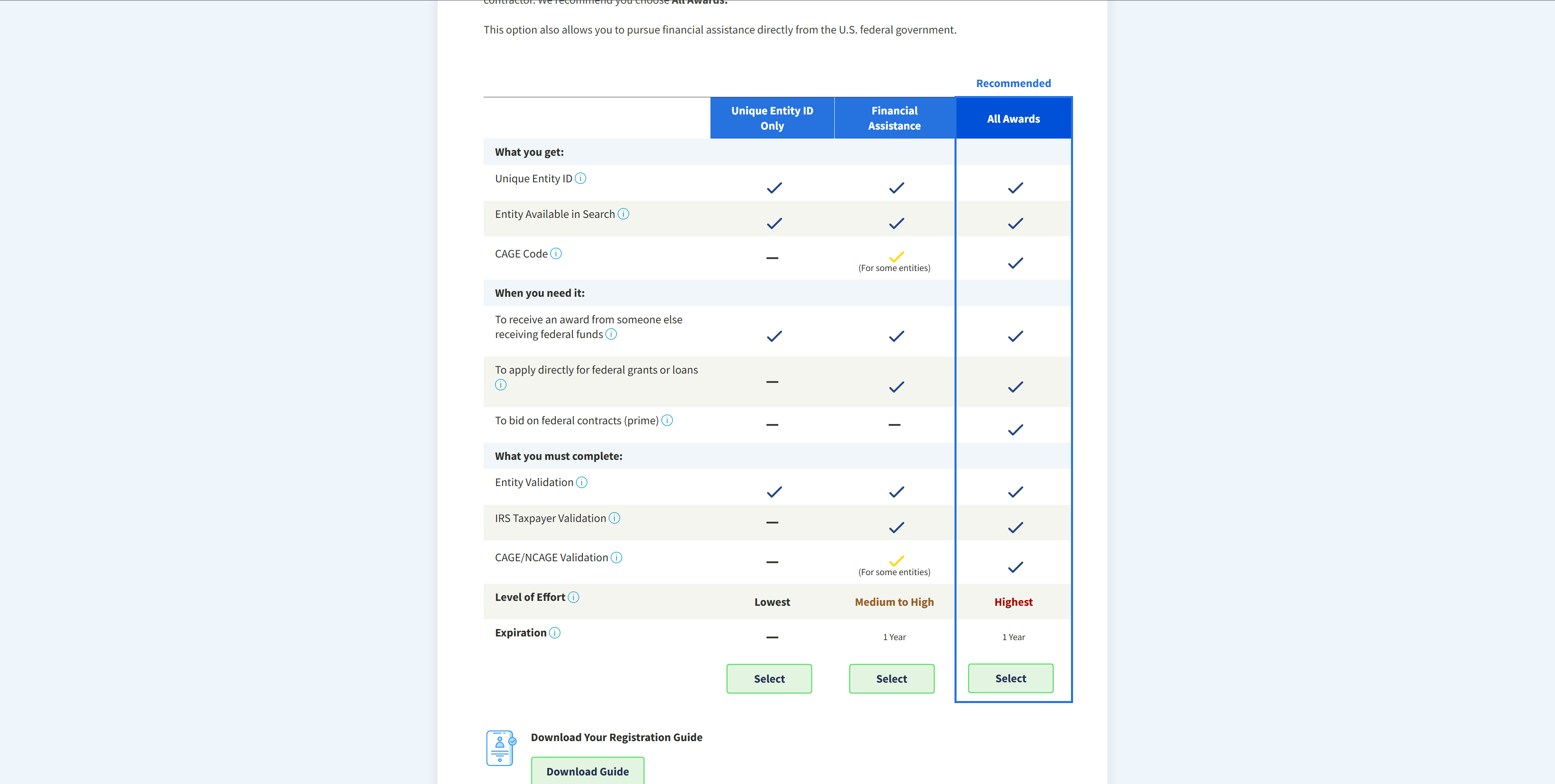
- 9
Choose registration type, All Awards (Recommended)
SAM shows three options. For CMMC Level 1, click Select under the “All Awards” column on the right. That's the only one that gives you a CAGE code, which you need for any DoD contract.Heads up: Don't pick Unique Entity ID Only. It's faster, but you can't bid on contracts as a prime, and you won't get a CAGE code, both of which CMMC L1 expects.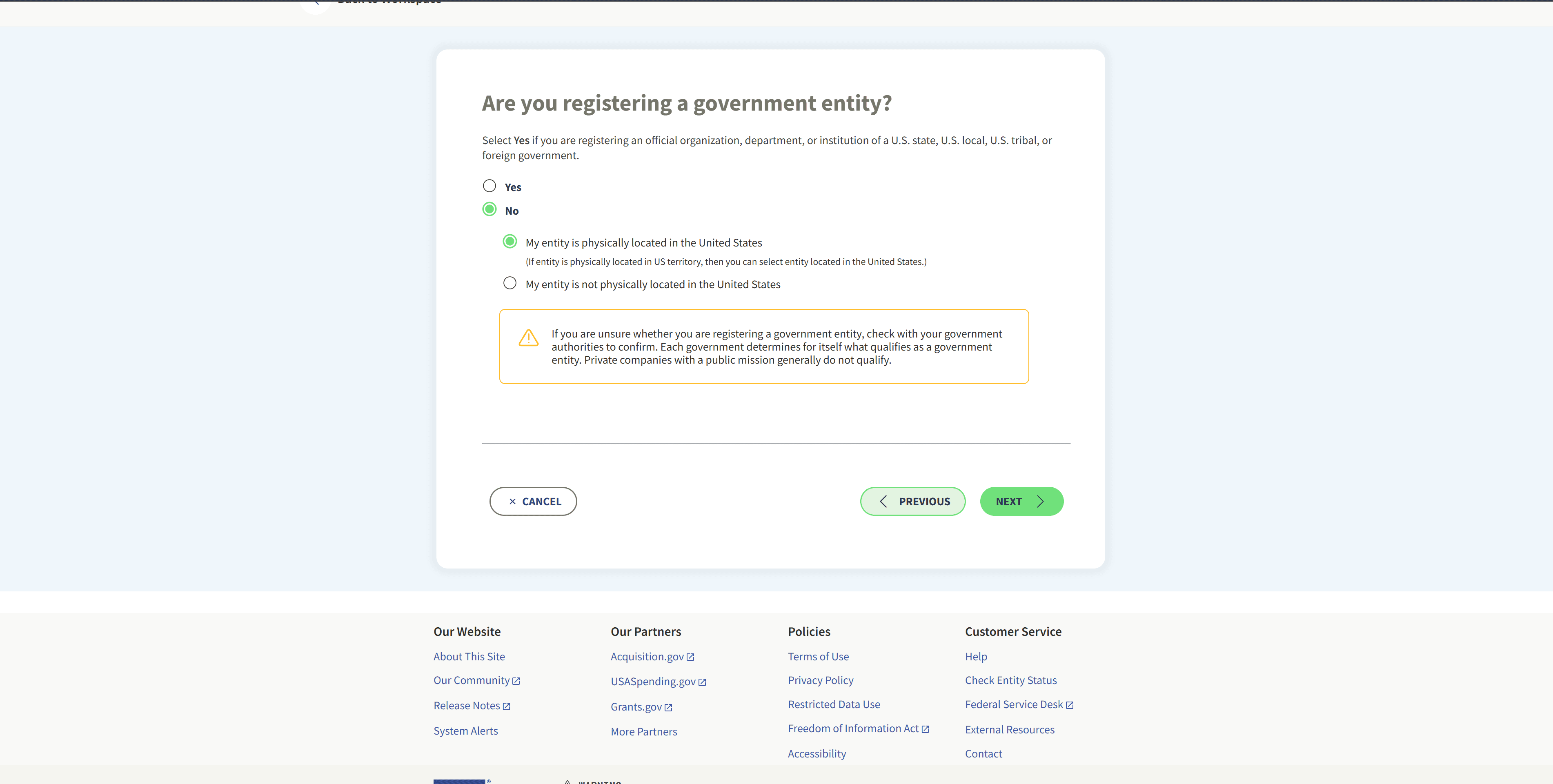
- 10
Do you already have a CAGE code?, No
Select No. SAM will automatically request a CAGE code from the Defense Logistics Agency (DLA) for you as part of this registration. Click Next.Heads up: Only pick Yes if you have a CAGE from a previous registration that lapsed. Most first-time registrants don't.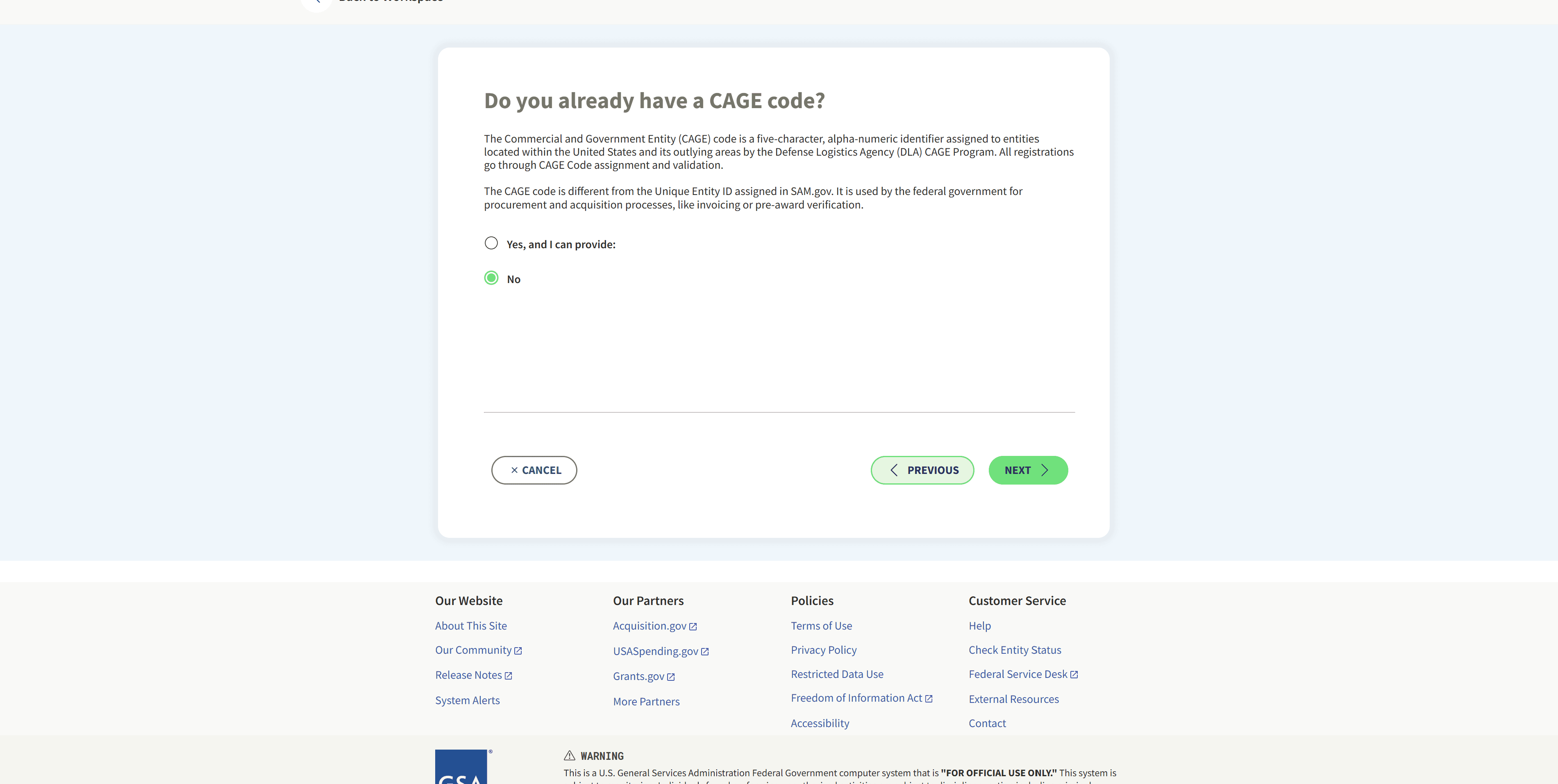
- 11
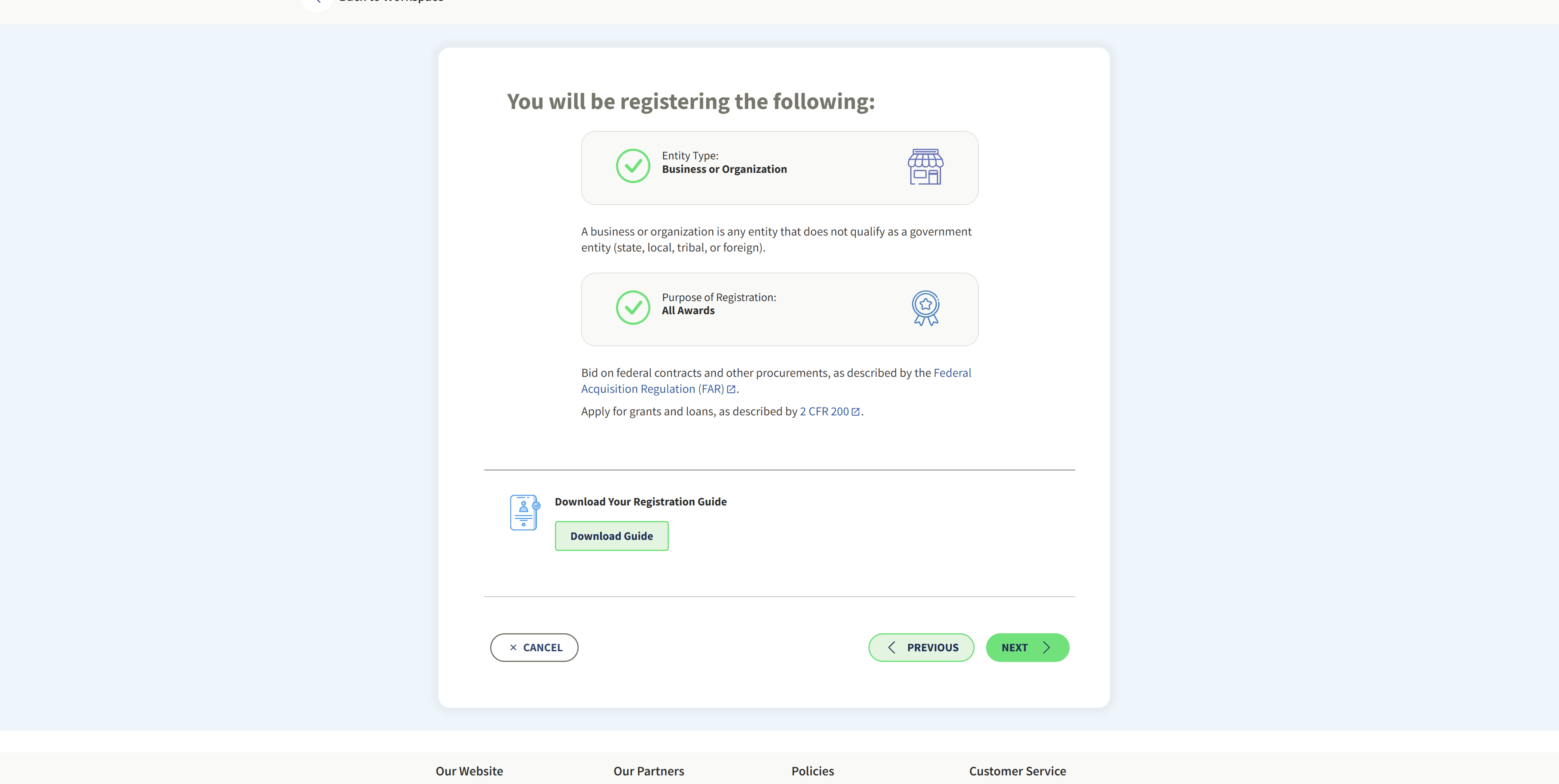
Confirm: Business or Organization + All Awards
SAM confirms what you're registering. You should see two green checks:- Entity Type: Business or Organization
- Purpose of Registration: All Awards
- 12
Fill out Business Information (and the rest of the sidebar)
This is the longest part, the full registration questionnaire. The left sidebar shows every section you'll complete:- · Business Information
- · Entity Search
- · Confirm Details
- · Review Entity Information
- · Add Incorporation Details
- · Document Upload
- · Review
- · Business Types
- · Taxpayer Information
- · Entity Relationships
- · Financial Information
- · Legal Proceedings
- · Goods & Services (NAICS codes!)
- · Business Operations
- · Points of Contact
Have these documents ready before you start: EIN, legal business name (exactly as on your IRS letter), physical address (no PO boxes), incorporation date, bank routing + account number (for EFT payments), and an IRS CP-575/147C letter or Articles of Incorporation for the Document Upload step.
When you reach the Goods & Services section, this is where you pick your NAICS codes, the six-digit numbers that describe what your business does. Look up codes that match your work at census.gov/naics and write them down, you'll paste the same ones into Custodia.
Heads up: The #1 reason registrations fail validation: the legal name + address you enter must match your IRS records exactly (LLC vs L.L.C. matters; suite numbers matter). If you've moved since getting your EIN, file IRS Form 8822-B before finishing this section, otherwise SAM will reject the registration and you'll lose a week.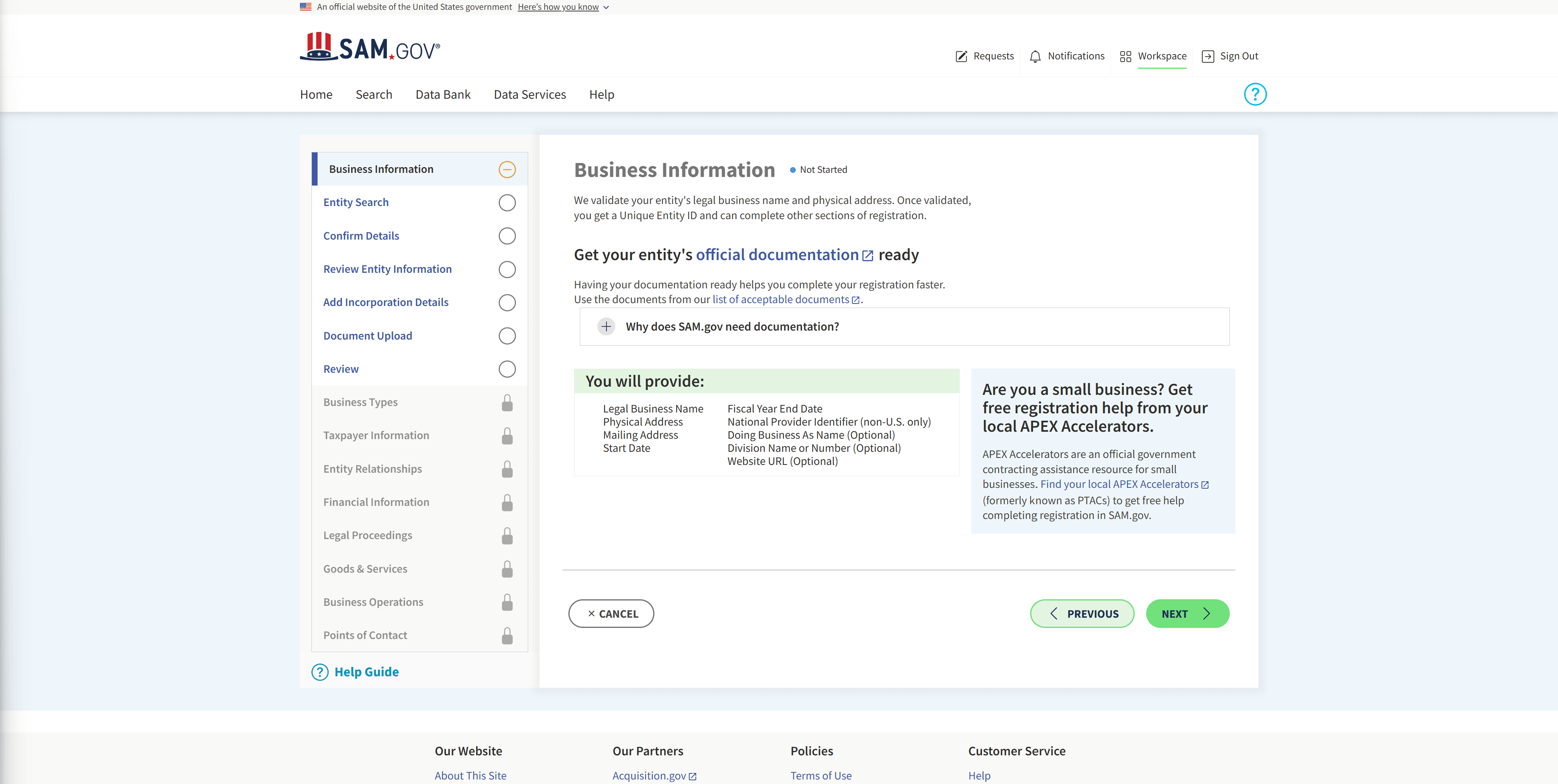
- 13
Review & Submit
After all sections are green, you'll land on the Review & Submit dashboard. Confirm both Review Entity Data and Review Representations and Certifications have green checks, then read the certification statement and click the green Submit button.Heads up: You're certifying everything you entered is accurate under penalty of federal law. Take a final pass through Reps & Certs before clicking Submit, corrections after submission require a renewal, which is slower.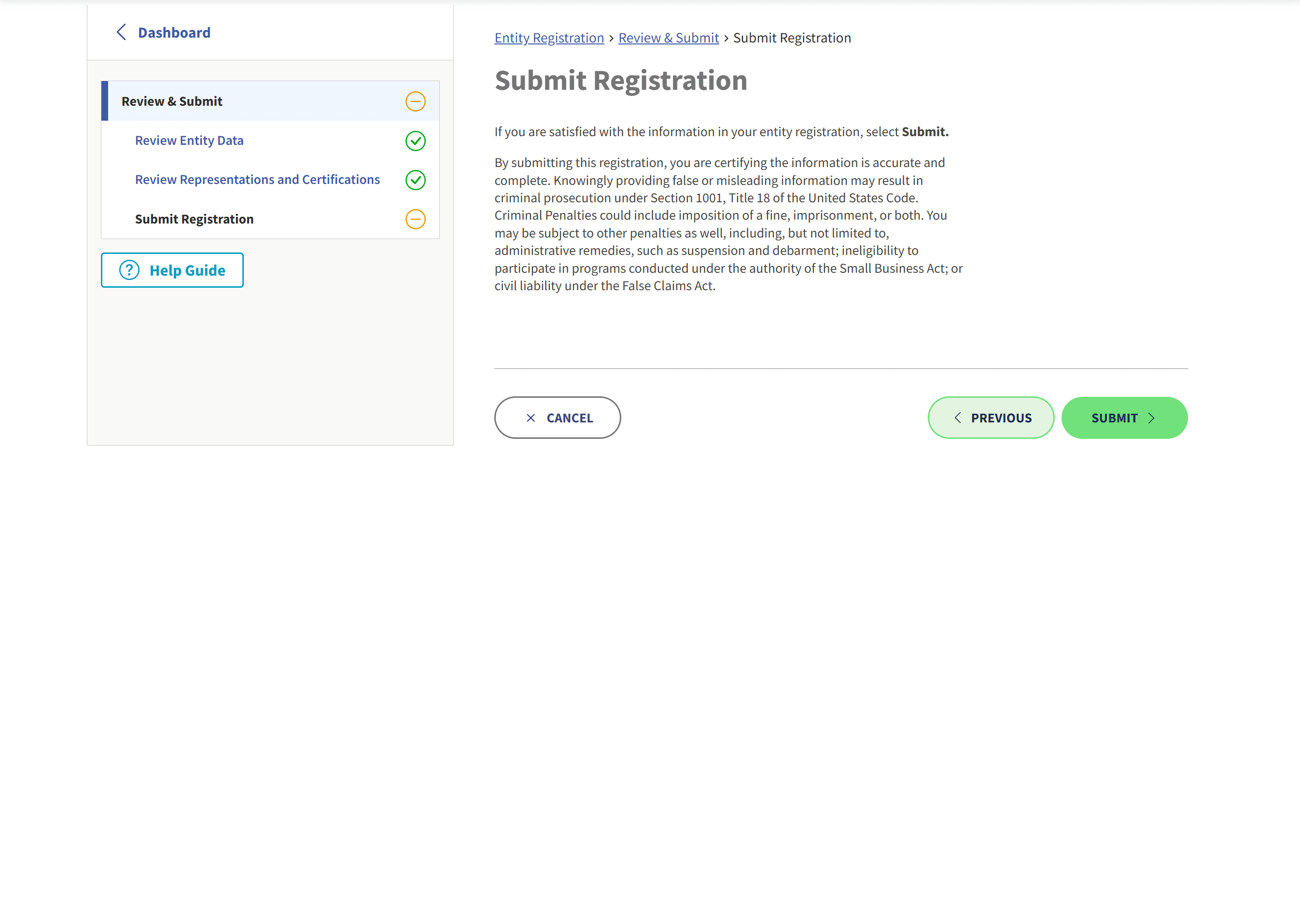
- 14
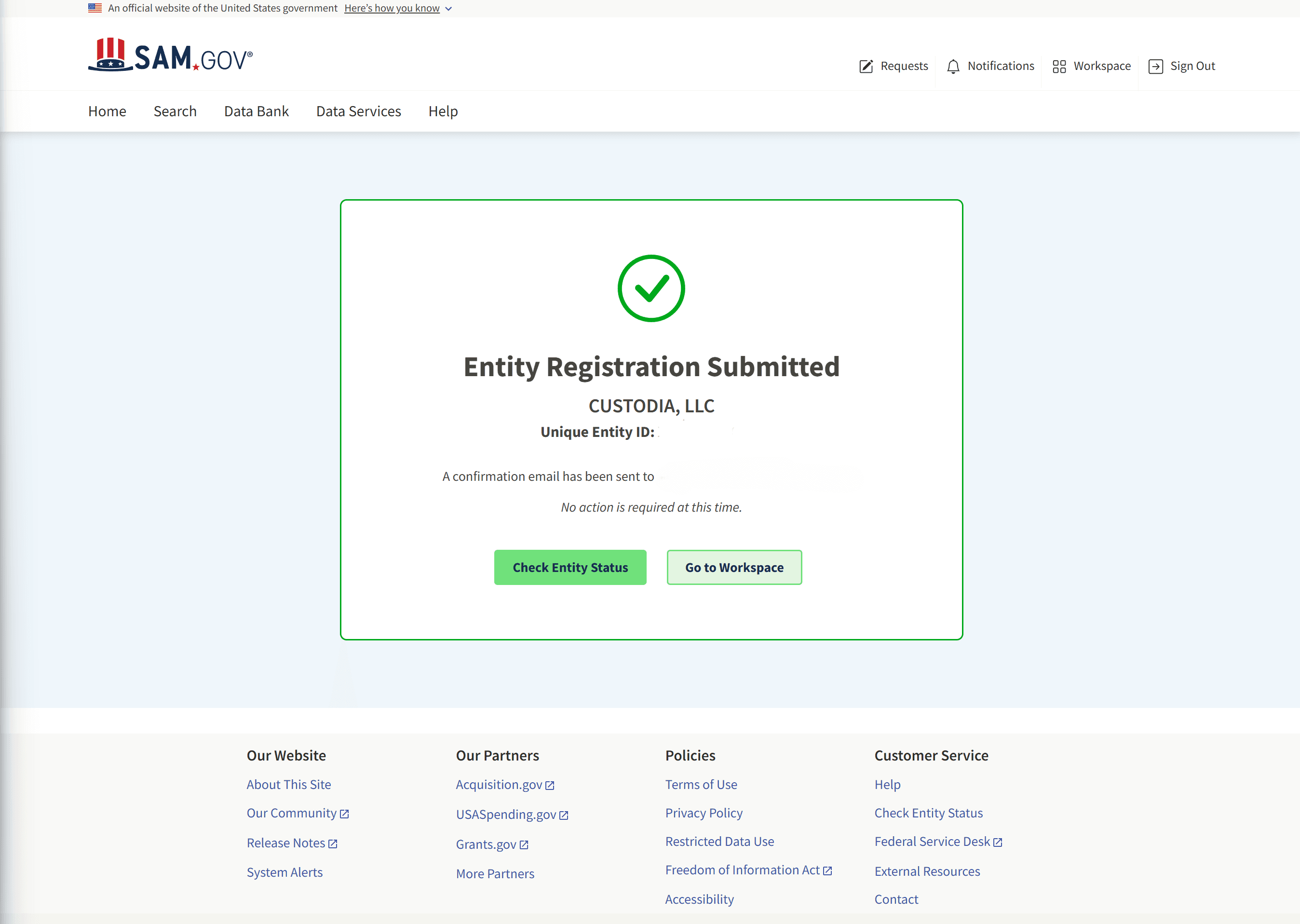
Entity Registration Submitted, copy your UEI
You're done with SAM. The success page shows your Unique Entity ID (UEI), a 12-character code likeABC123XYZ987. Copy it now.What happens next behind the scenes:
- IRS taxpayer validation, 2 to 5 business days
- CAGE code assignment by DLA, 3 to 10 business days
When both finish, your registration flips from Submitted to Active and your CAGE code appears in your Workspace. You'll get an email from SAM.
You're back from SAM.gov, here's what to do in Custodia
Open the Custodia Federal contractor registration page in your assessment and fill it in:
- 1. Unique Entity ID, paste the 12-character code from your SAM.gov success screen.
- 2. CAGE code: leave blank for now. DLA hasn't issued it yet. We'll remind you.
- 3. Entity type, pick the legal structure you registered under (LLC, C-Corp, S-Corp, Sole proprietor, etc.).
- 4. Industry codes (NAICS), paste the same six-digit codes you selected in SAM's Goods & Services section, comma-separated. Example:
541512, 541519. - 5. Click “Save and continue.” The 15 CMMC Level 1 safeguarding requirements unlock immediately.
Set a 5-business-day reminder for your CAGE code
DLA typically issues your CAGE code within 3 to 10 business days. We'll set a reminder for you on Friday, October 30, 2026 so you remember to check your SAM Workspace, copy the CAGE code, and paste it into Custodia.
Once your UEI and at least one NAICS code are saved in Custodia, the third section, the 15 CMMC Level 1 safeguarding requirements, unlocks. You can start working through them while DLA finishes issuing your CAGE code in the background.
Need to step away? This guide stays at this URL, bookmark it and come back any time.